

Embedded Web UI
Embedded Web UI
The KurrentDB embedded UI is available by default at <SERVER_IP>:2113 and helps you interact with and visually manage a cluster, as well as browse the data. This guide explains the interface's pages and their functions.
Tips
The legacy web interface (/web) has been removed. Its functionality now lives in this embedded UI and in Kurrent Navigator, a separate desktop app you can use alongside the server.
The embedded UI shows the cluster status and resource utilization, useful metrics about the throughput of data being written to and read from the database, and information about each cluster node such as its configuration, license status, and loaded plugins. It also lets you browse streams, manage projections and persistent subscriptions, run ad-hoc queries, manage users, and run scavenges.
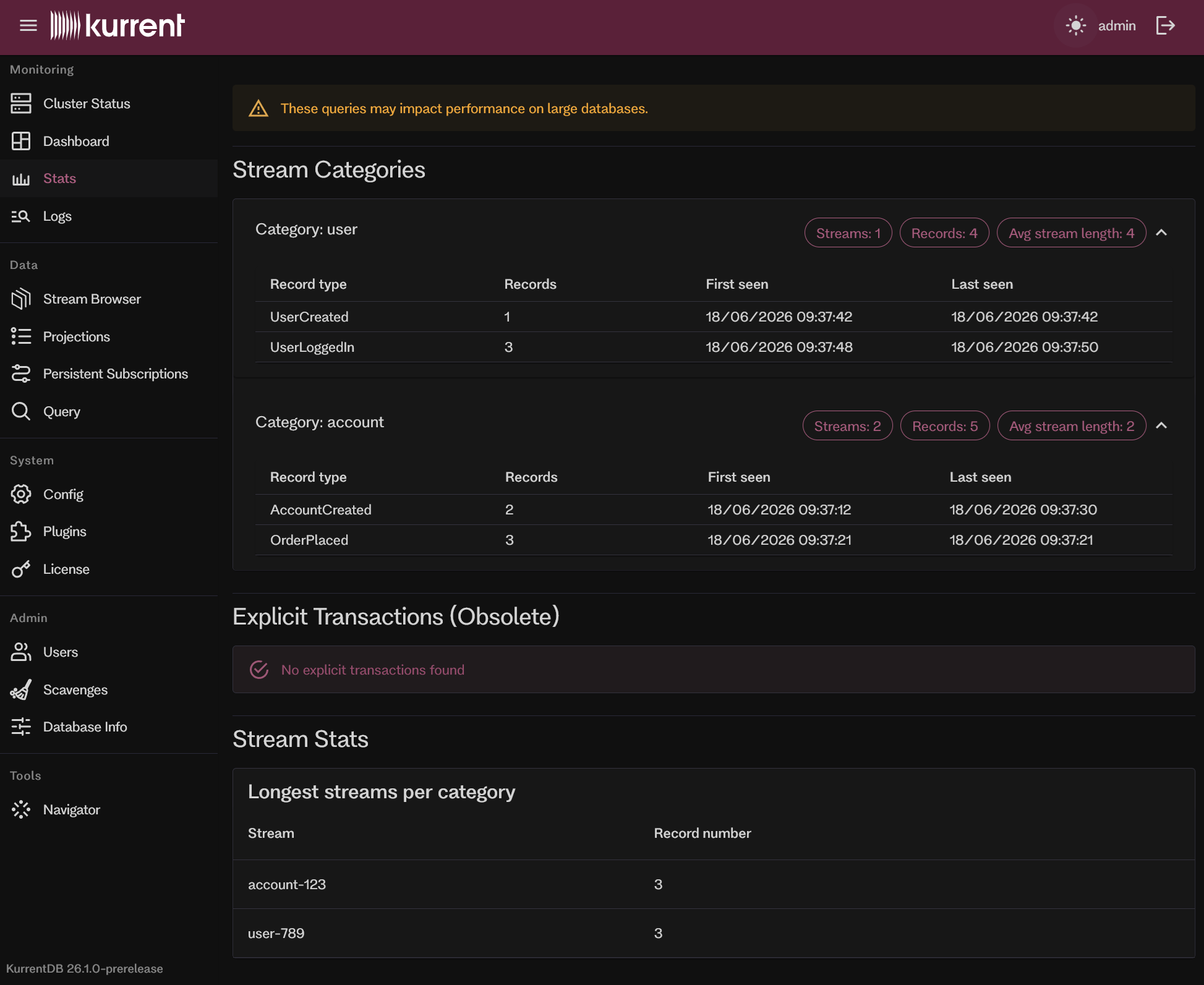
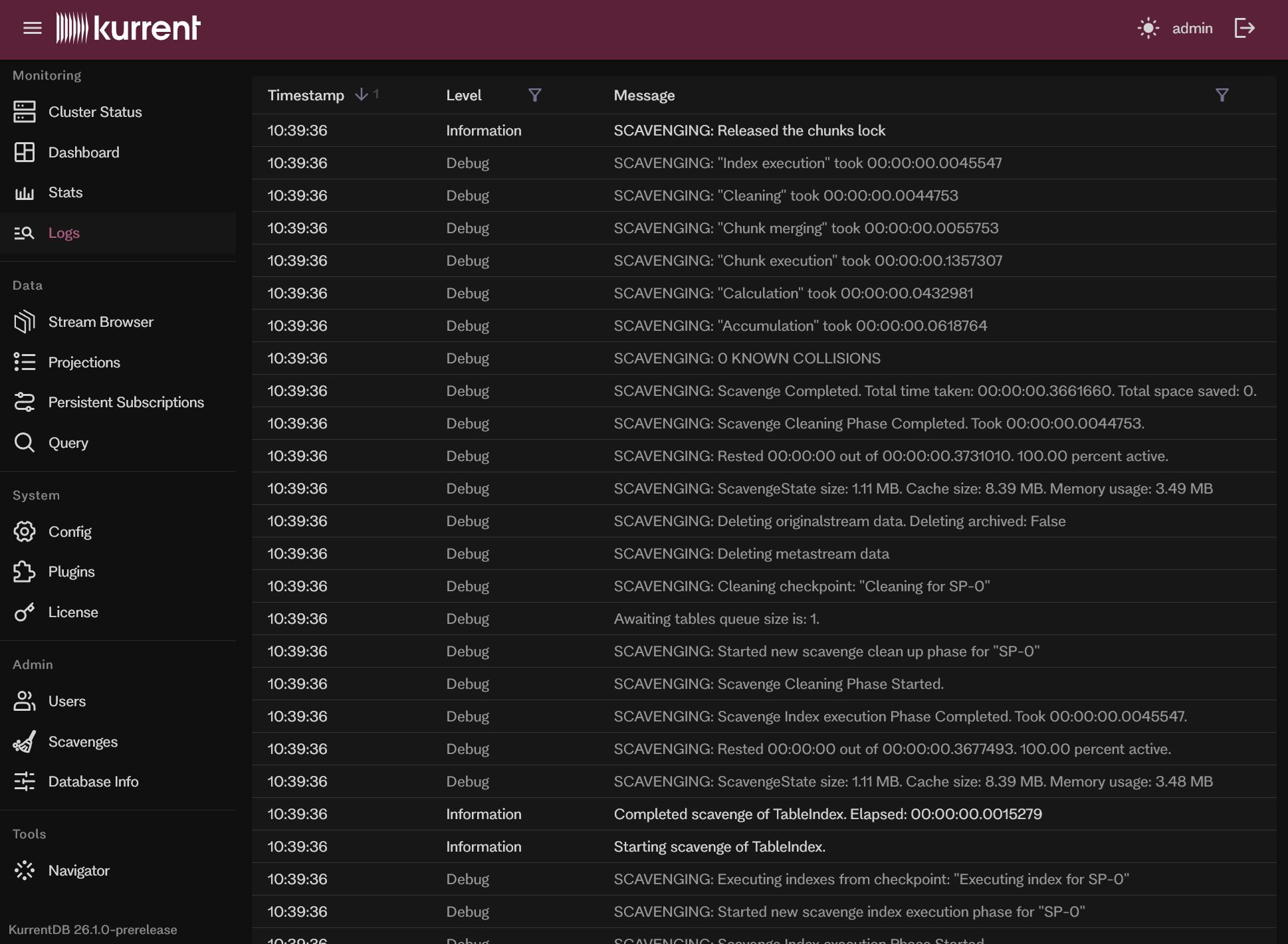
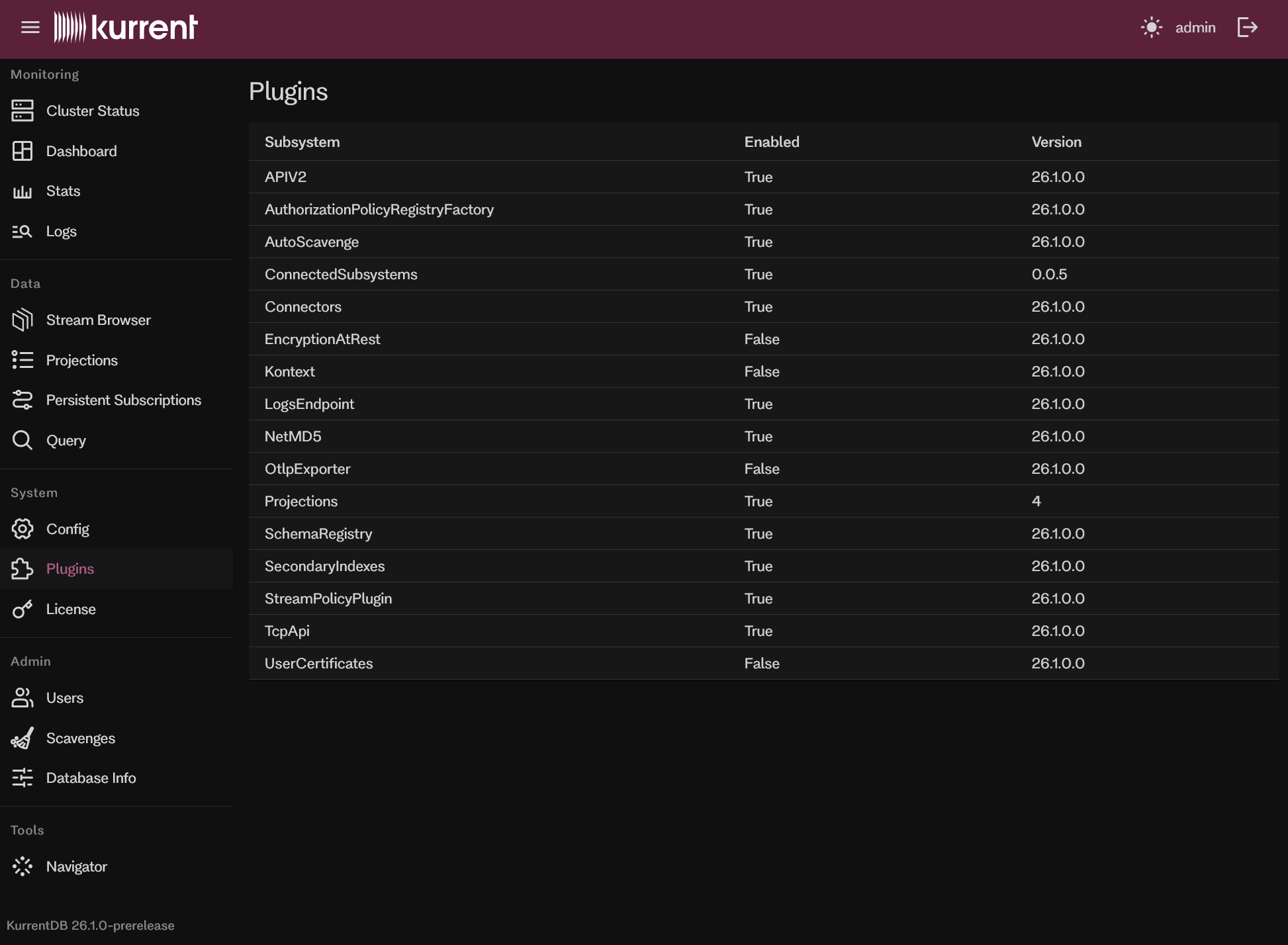
Use the brightness toggle in the top bar to switch between light and dark themes; your choice is remembered. Pages marked License Required require a license.
Cluster Status
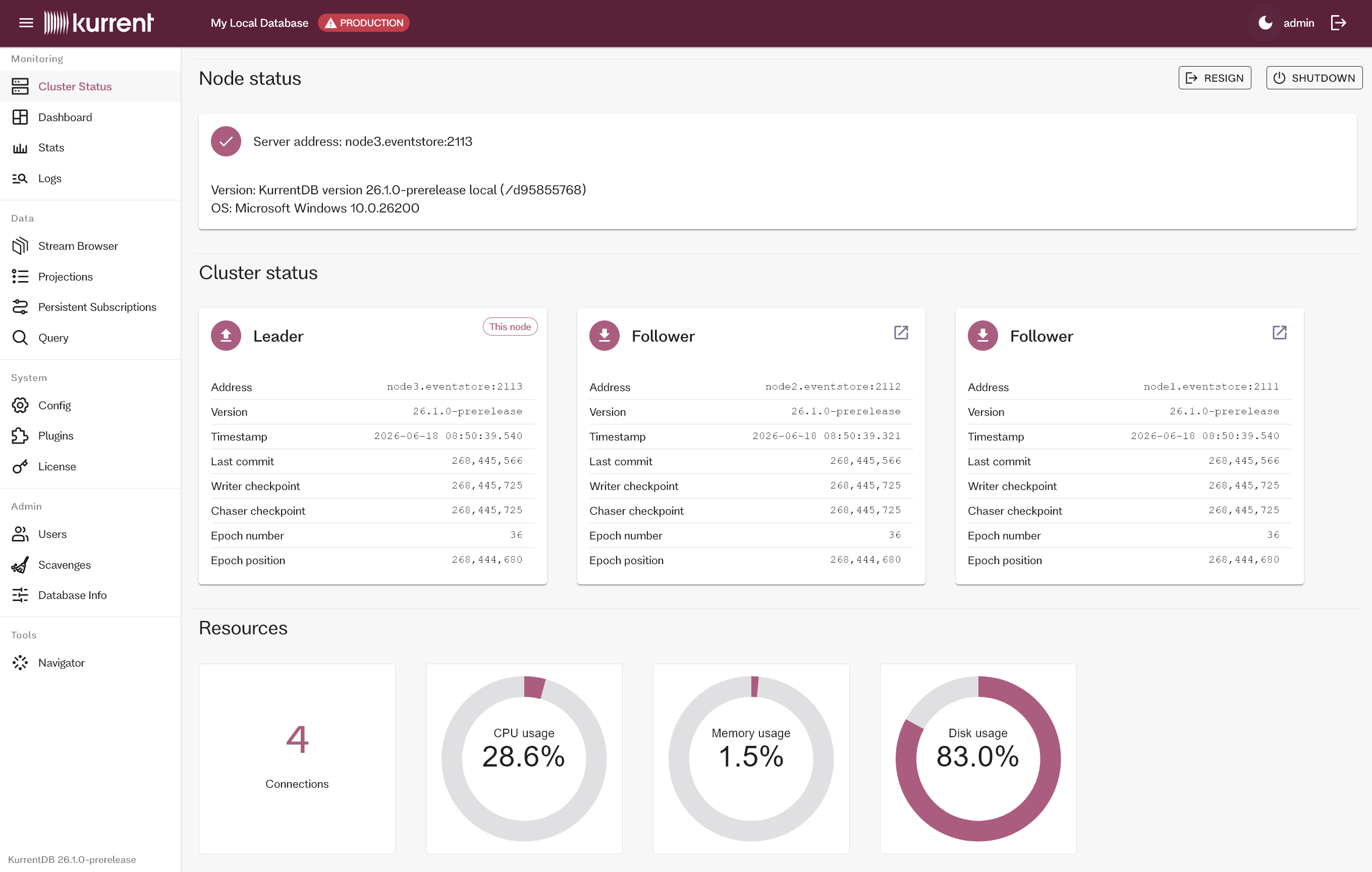
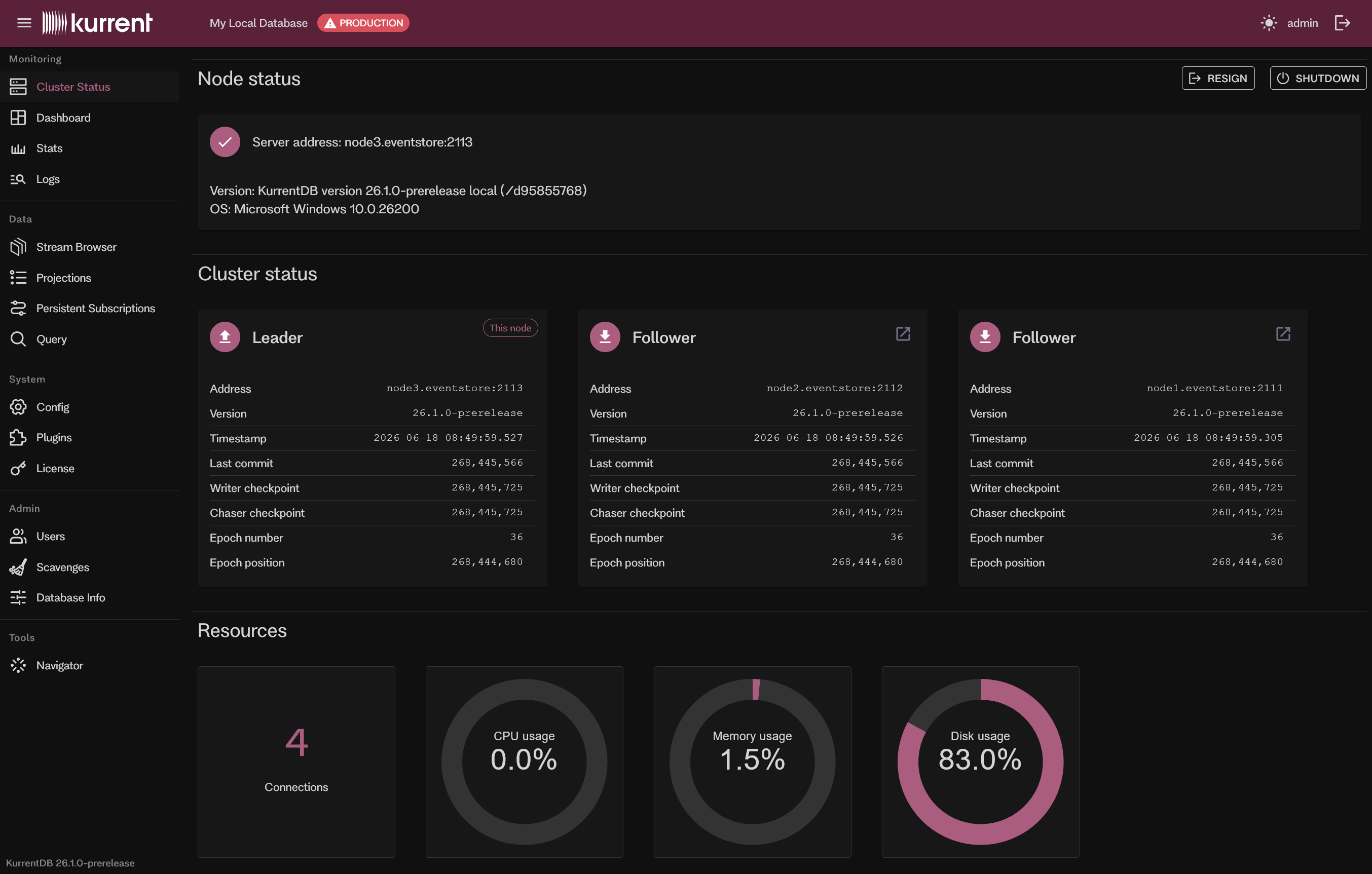
The Cluster Status page shows the serving node's status and the cluster as a whole:
- Node status: The address, version, and operating system of the node you are connected to. From here you can Shutdown the node, and — when the local node is the leader of a multi-node cluster — Resign it (trigger a leader election). Both actions require the appropriate permission and are disabled otherwise.
- Cluster status: A card per cluster member showing its state, address, checkpoints, and epoch. The card for the node you're connected to is tagged This node; every other live node has an Open this node's UI button that opens that node's UI in a new tab.
- Resources: CPU, memory, and disk gauges plus the active connection count, with throughput charts License Required.
Dashboard
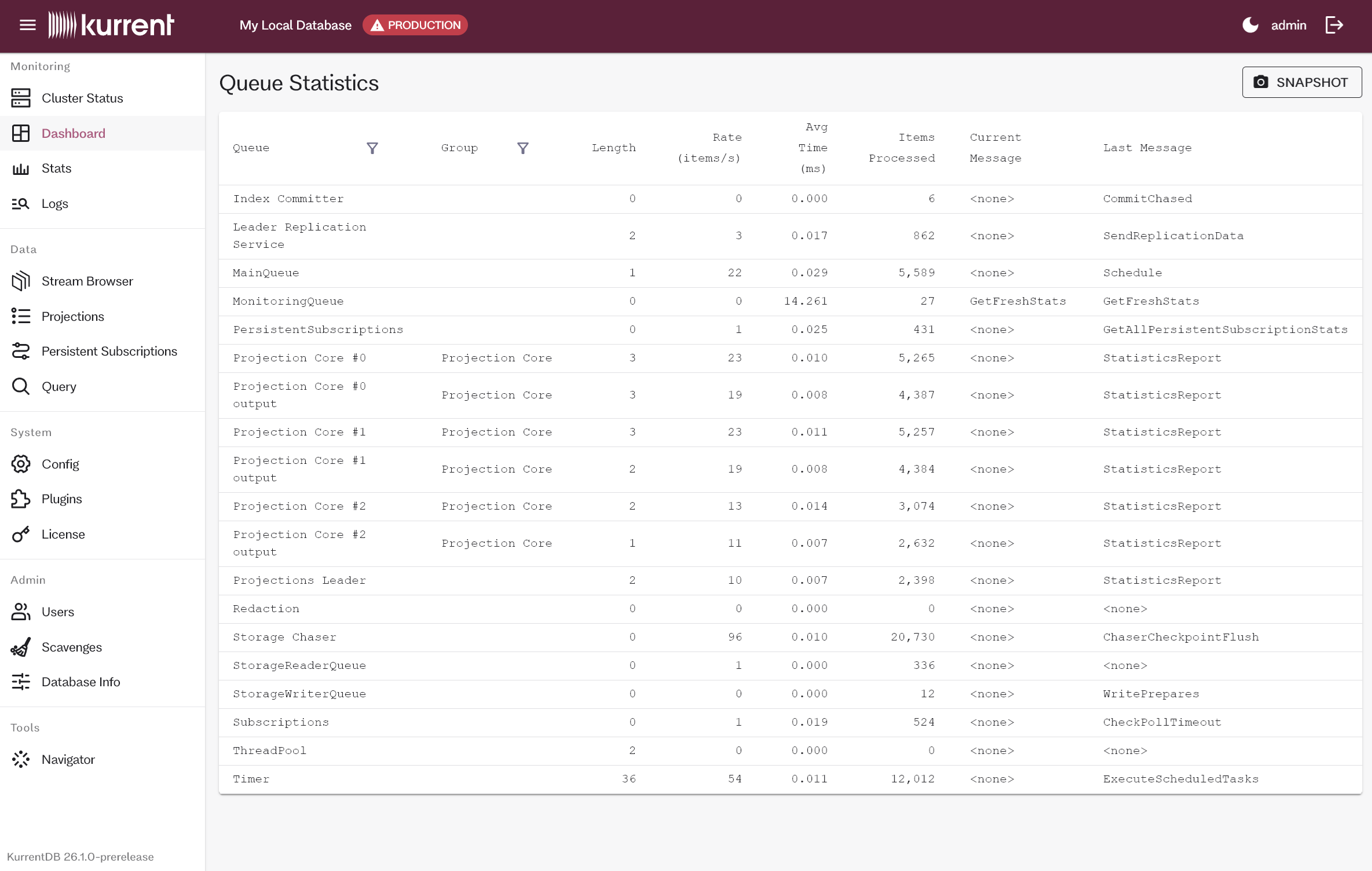
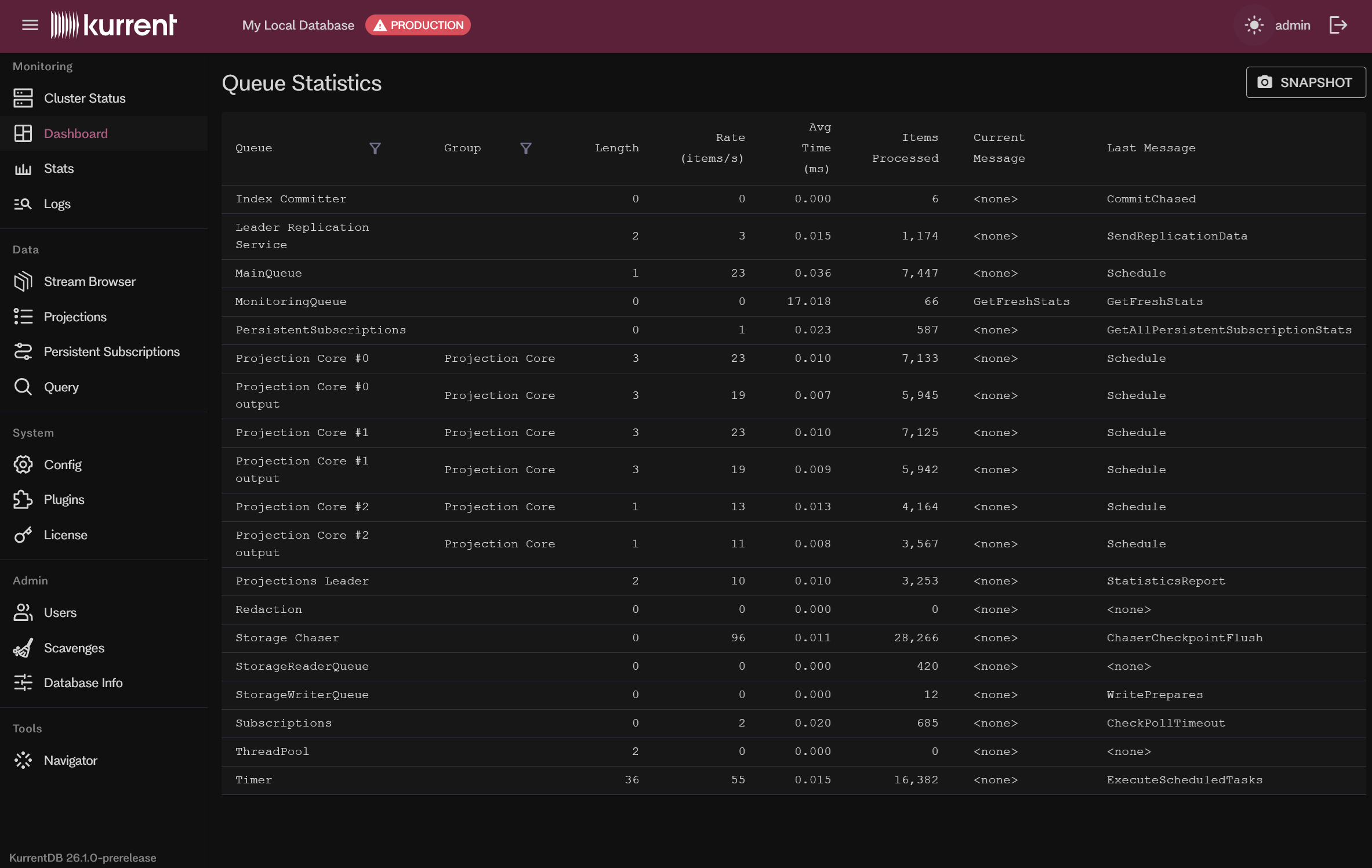
The Dashboard shows queue statistics for the node you're connected to — a live, filterable table of the server's internal processing queues. For each queue it lists its group, current length, processing rate (items per second), average processing time, total items processed, and the current and last message it handled. It's useful for spotting a backed-up queue or a processing bottleneck.
Use Snapshot to capture the current statistics as text you can copy to the clipboard.
Database stats
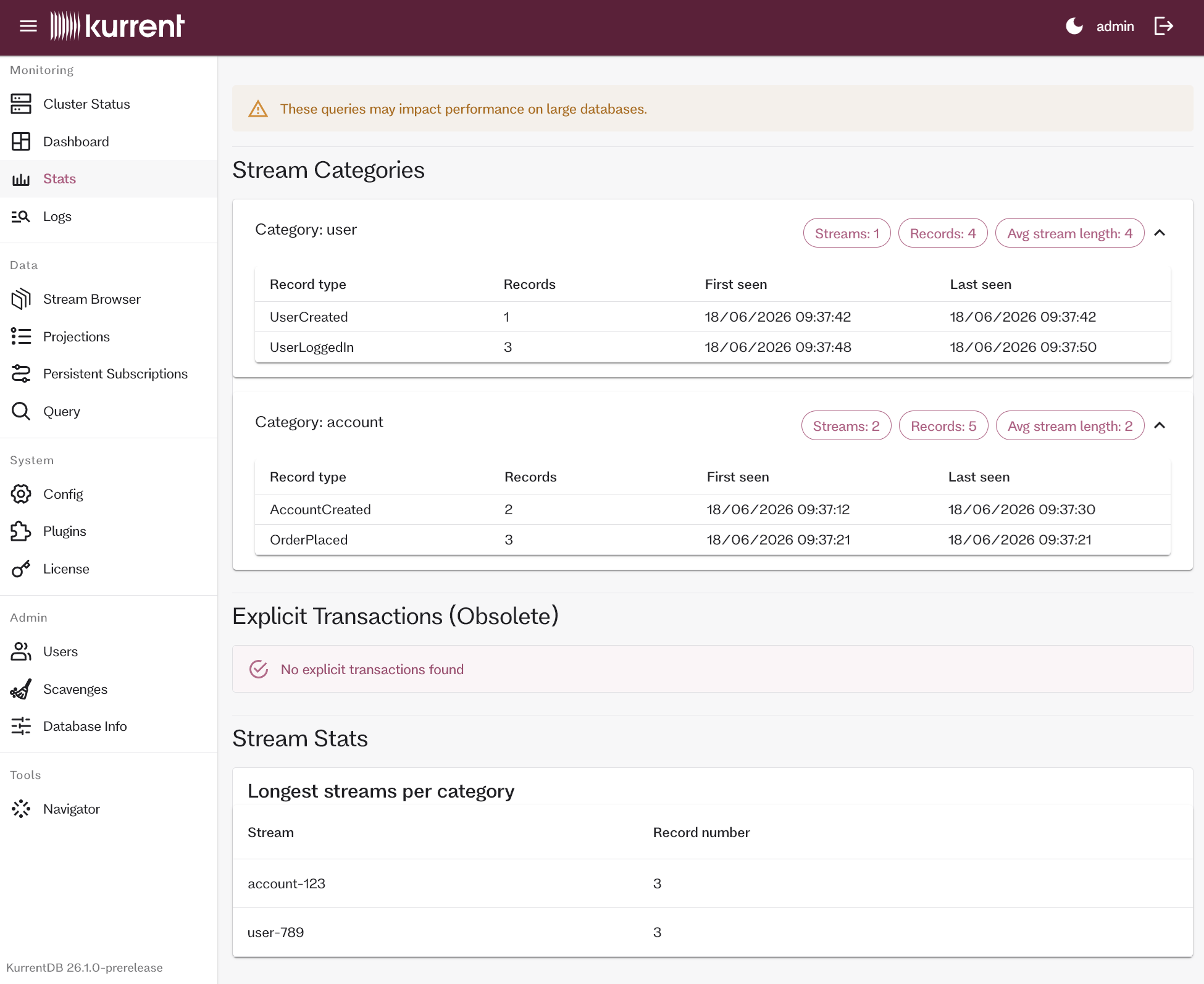
License RequiredWhen secondary indexes are enabled, the Stats page shows additional information about the database, including:
- Stream categories: Stream categories in the database, with:
- Event types: Event types per stream category, with number of records per type and the earliest and latest record timestamps.
- Streams: Number of streams per stream category.
- Events: Number of records per stream category.
- Avg. stream length: Average stream length per stream category.
- Explicit transactions: Whether the database has records that are part of explicit transactions, and how many were found. Writing explicit transactions is deprecated and not supported by the current client APIs.
- Stream stats: The longest stream per category.
Logs
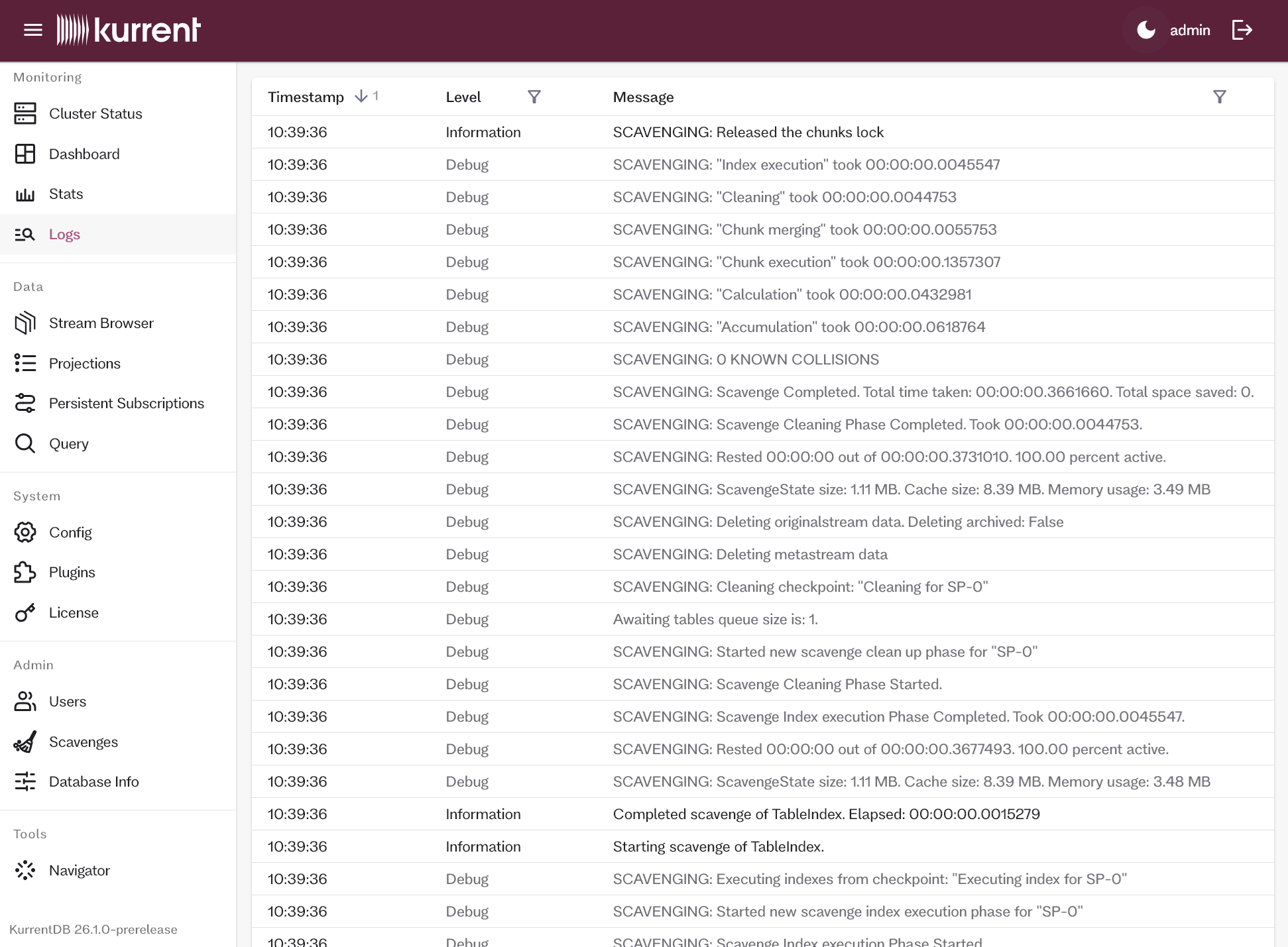
License RequiredThe Logs page shows the cluster node's recent log messages. You can filter by log level and message content. Logs are streamed to the UI in real time, starting from the moment you open the page; there's no option to load older logs here.
Stream Browser
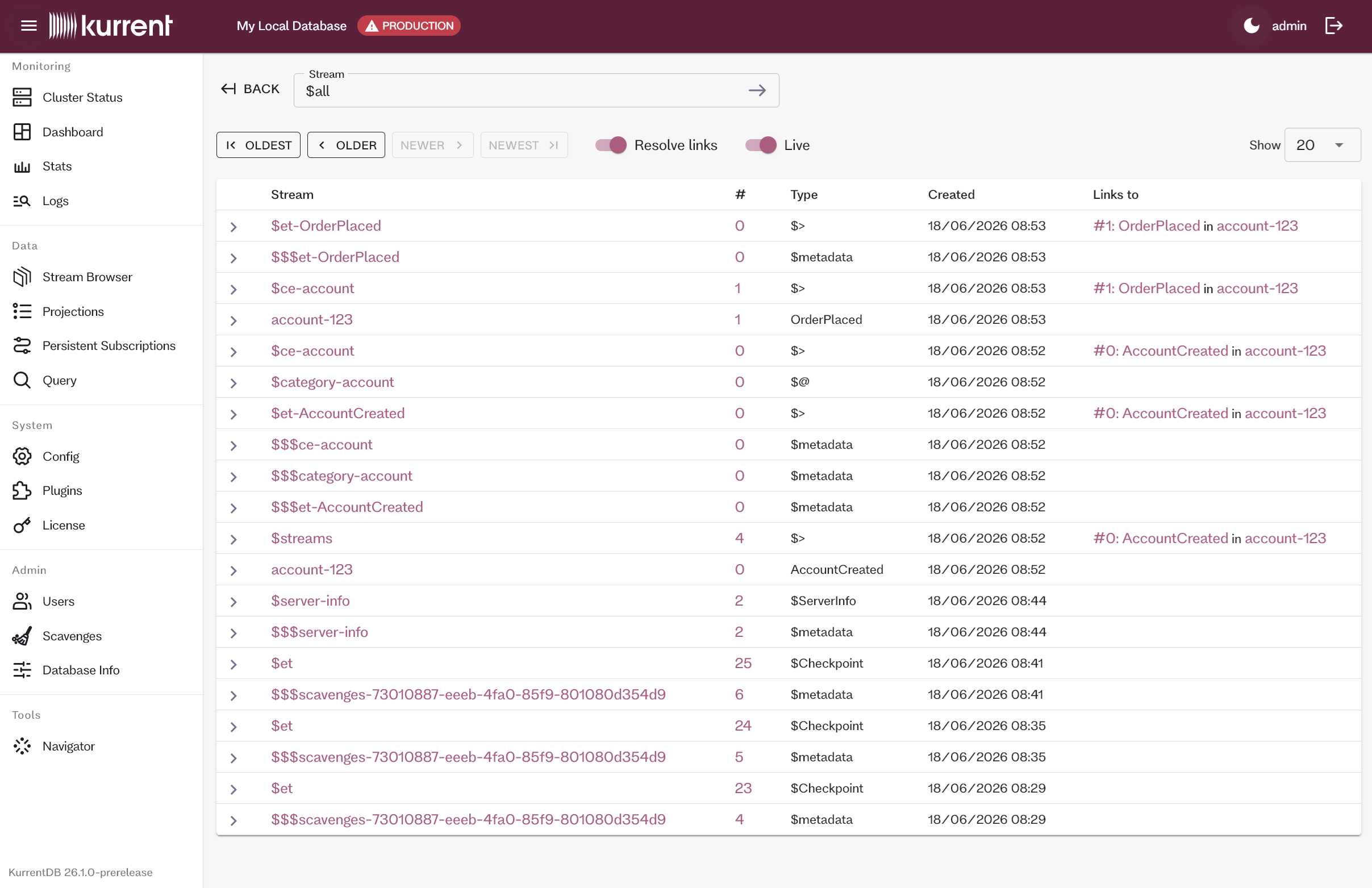
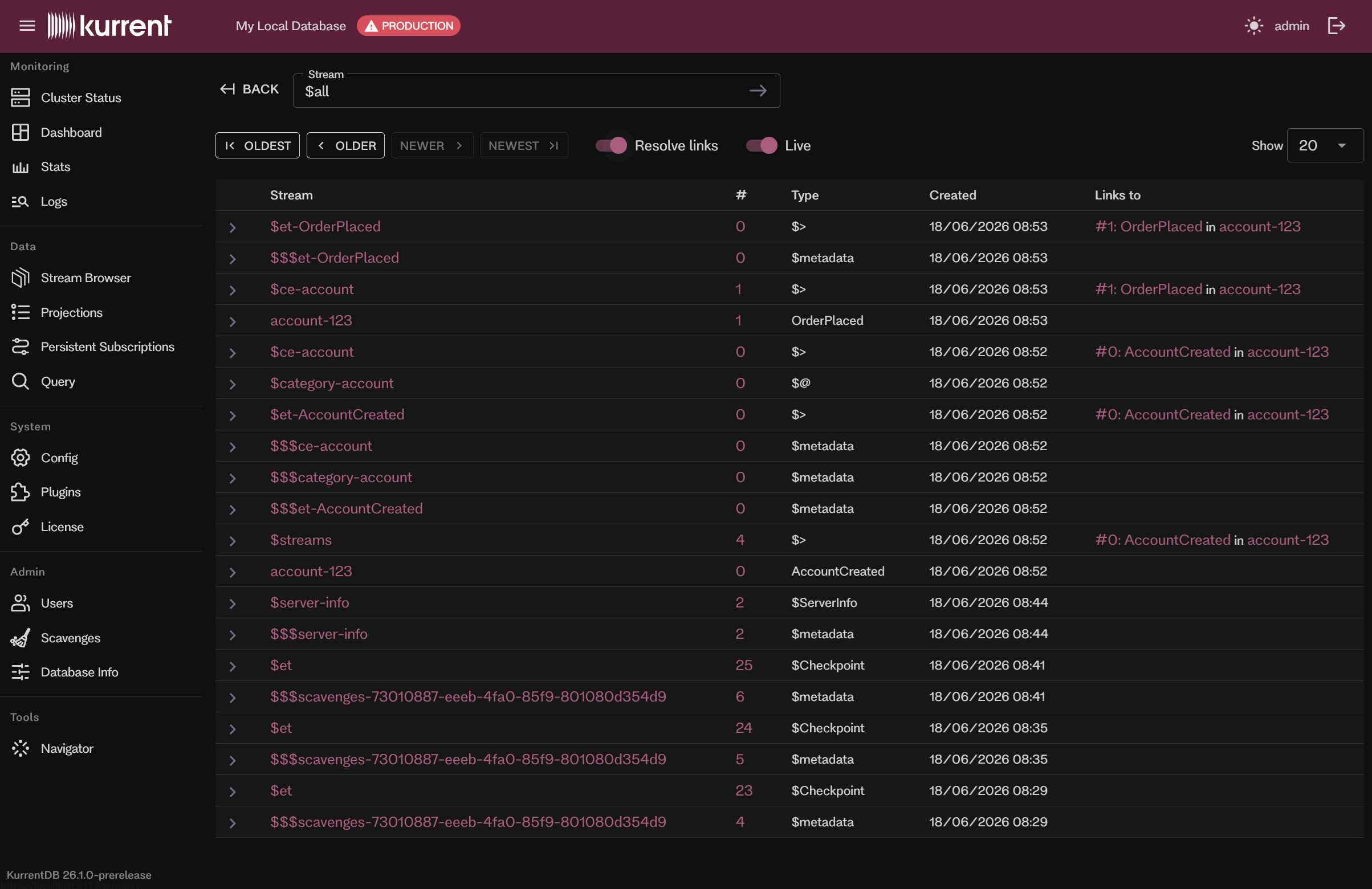
The Stream Browser lets you browse individual streams and the $all stream to inspect their records. Selecting a stream opens its detail view:
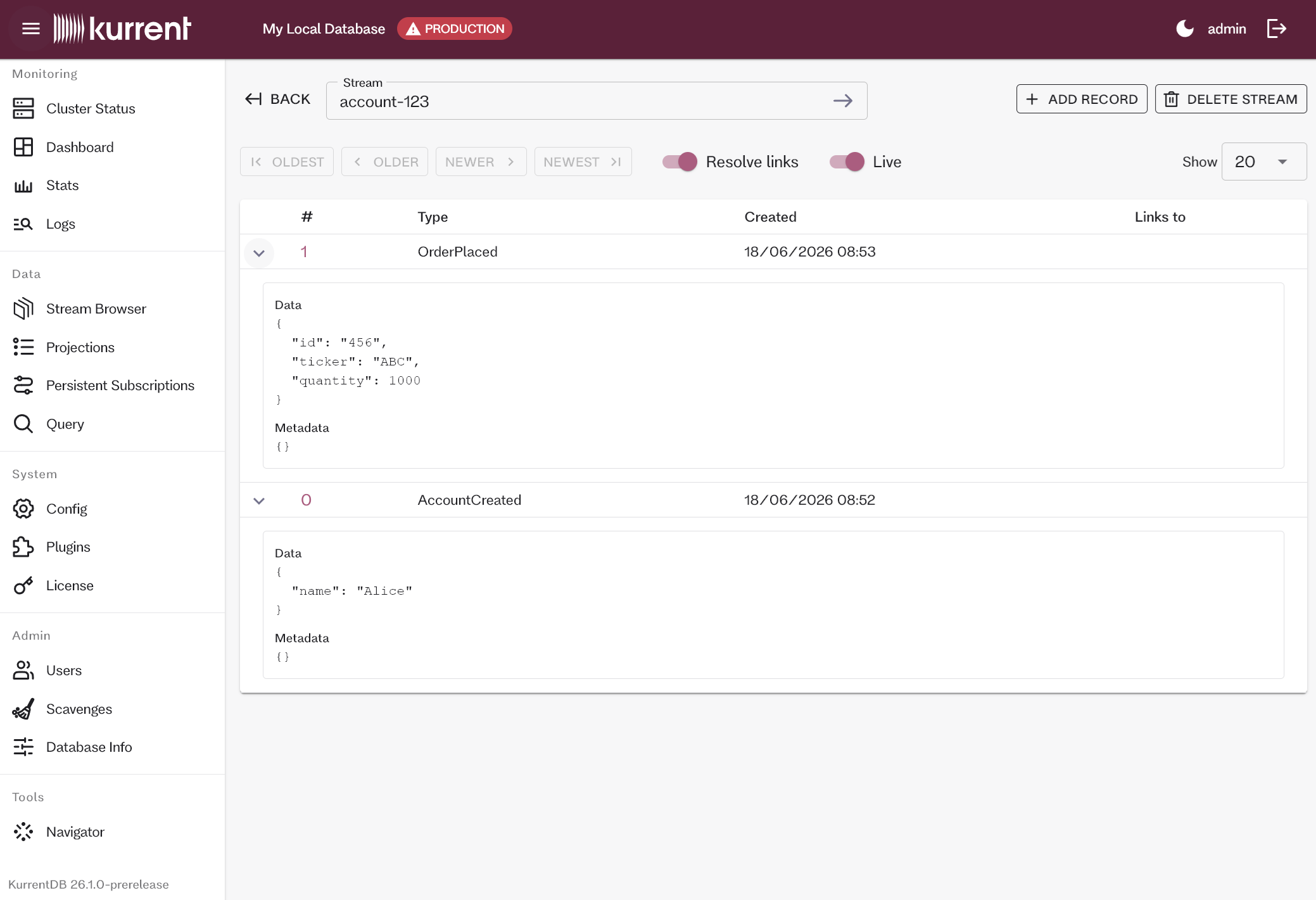
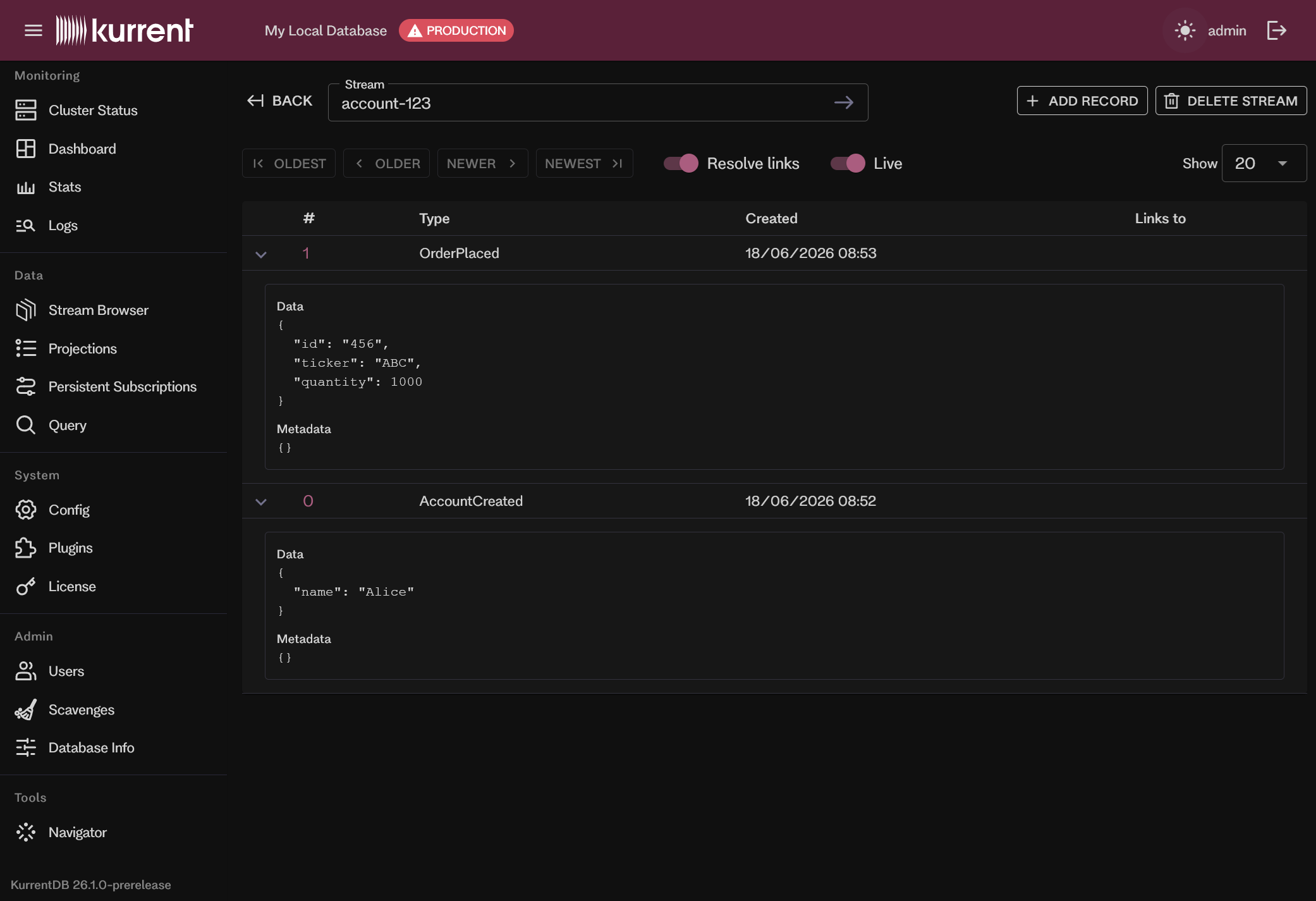
The stream detail view pages through the stream's records and, depending on your permissions, lets you add records or (soft) delete the stream.
Selecting a record opens its full data and metadata.
Projections
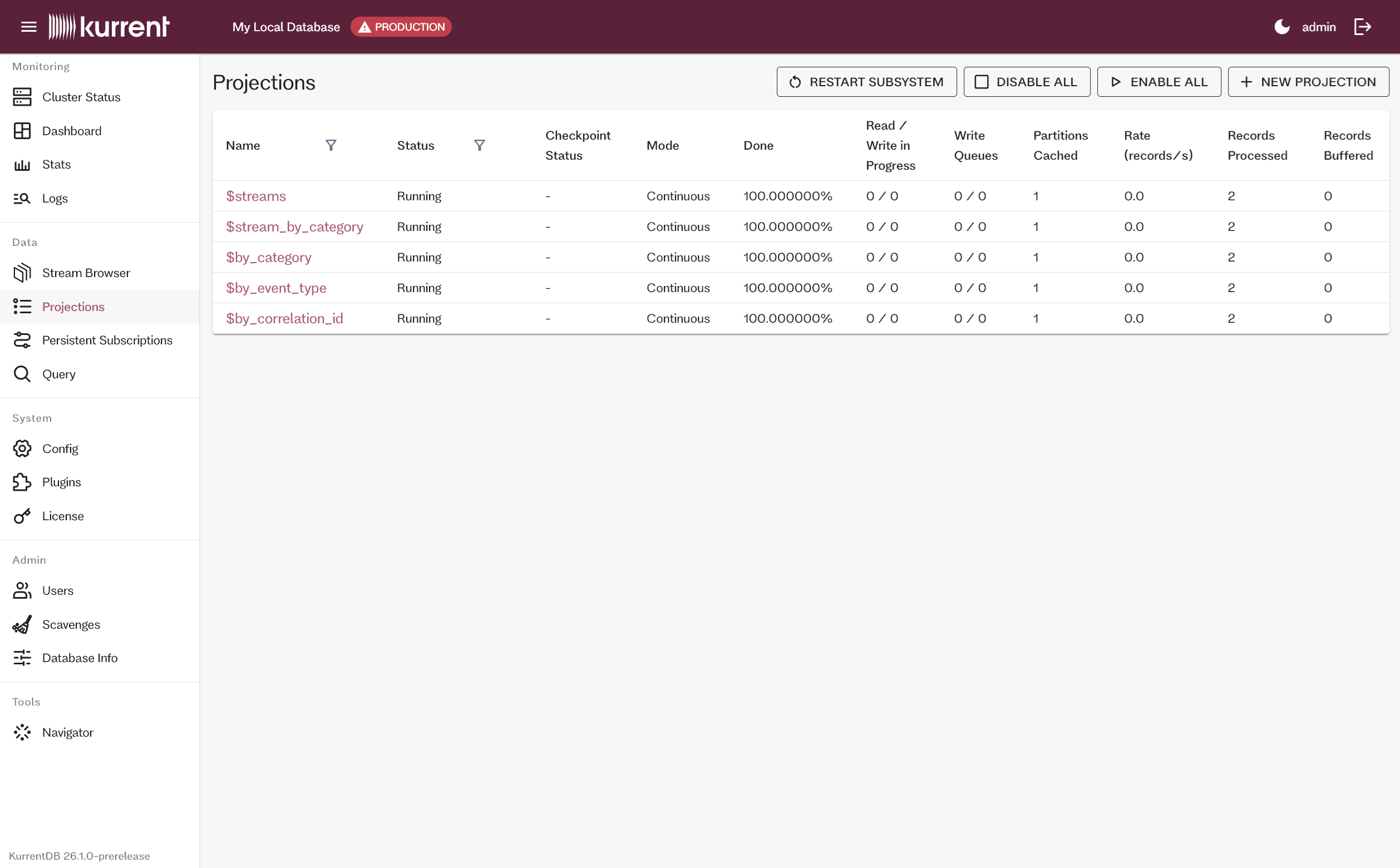
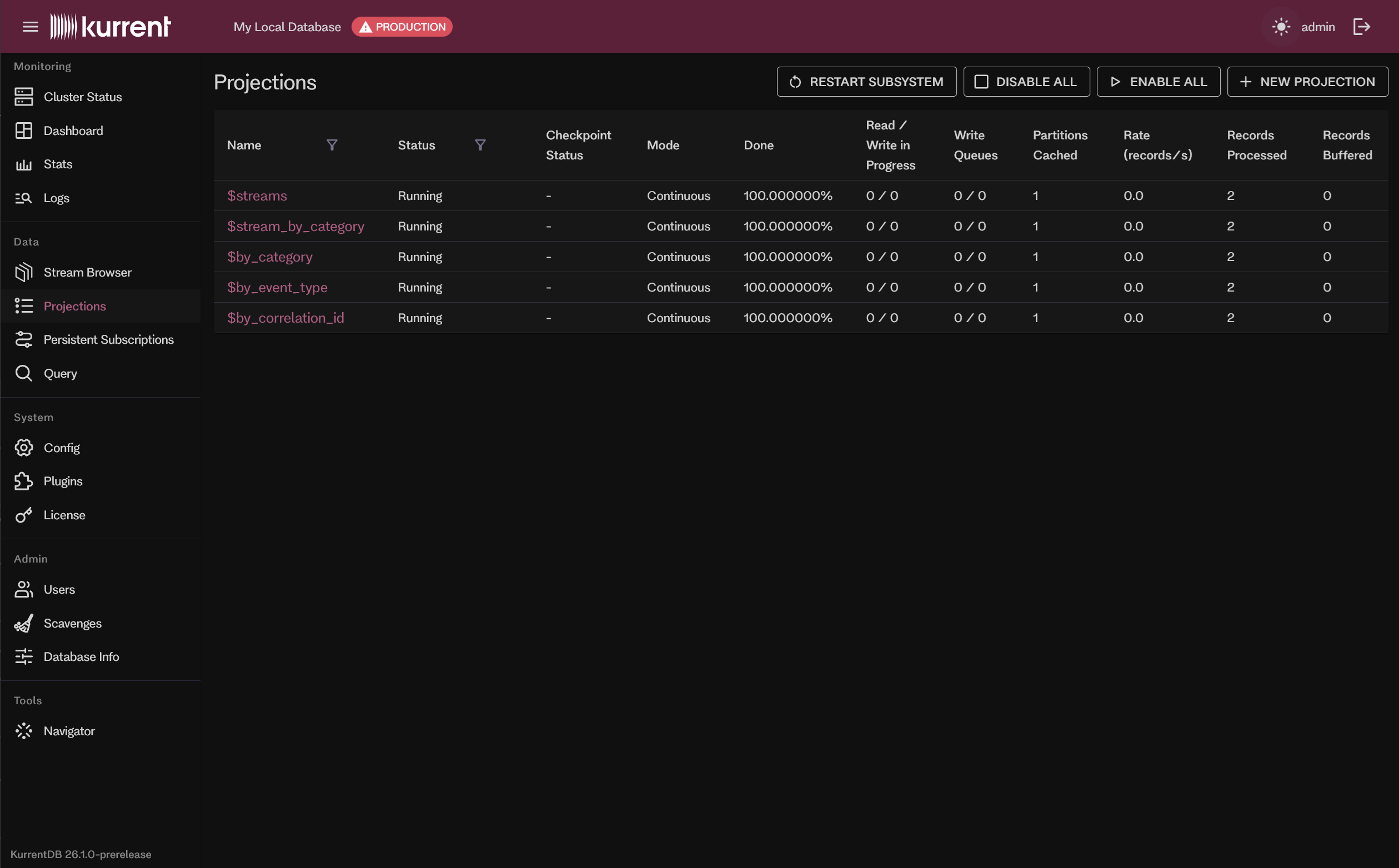
The Projections page lists the system and user-created projections. From the list you can Enable All / Disable All, create a New Projection, and — on the leader — Restart Subsystem. When projections are disabled on the node, or when you are connected to a follower, the page shows an explanatory notice instead (with a link to the leader for follower nodes).
Selecting a projection opens its detail view:
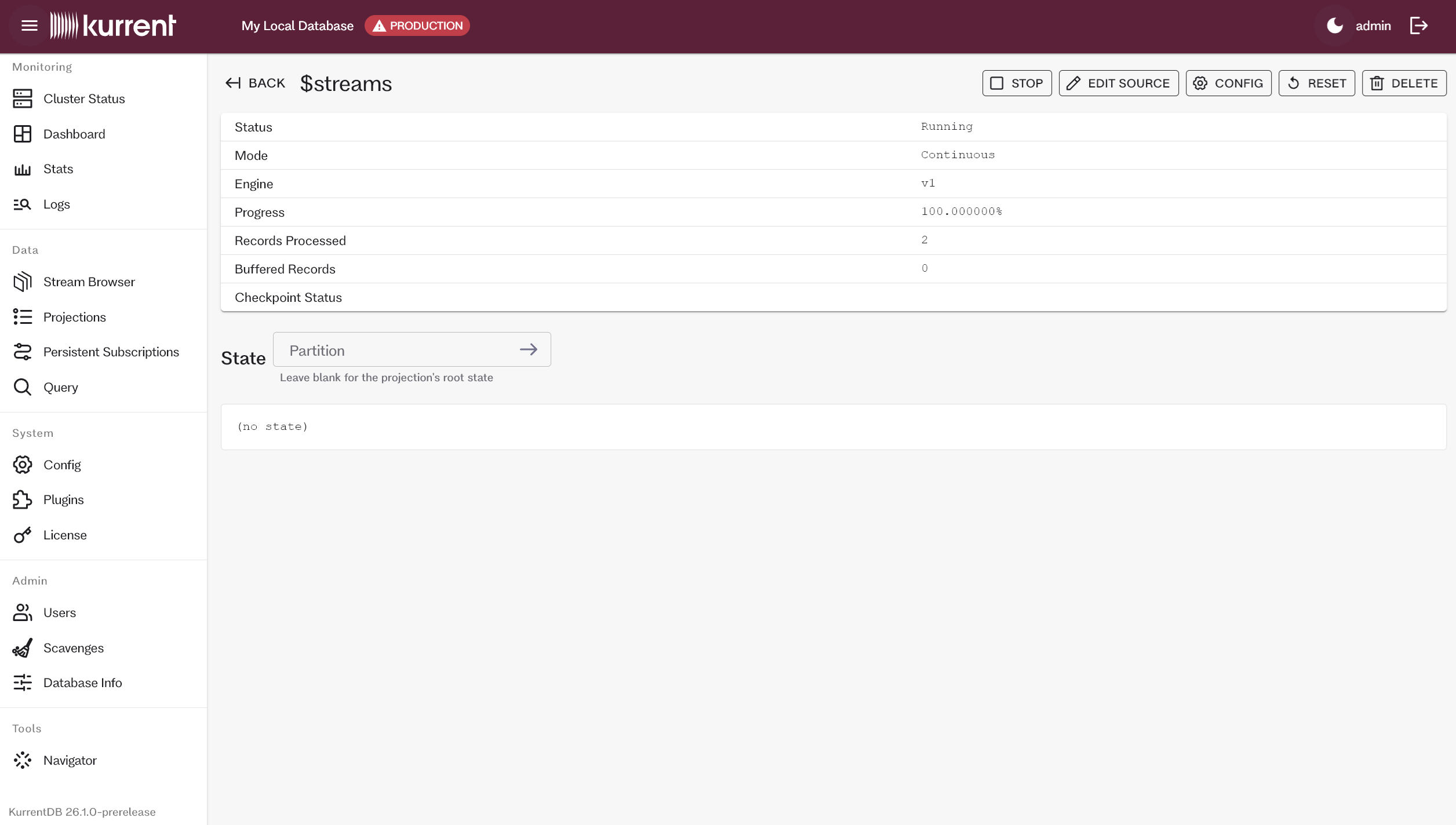
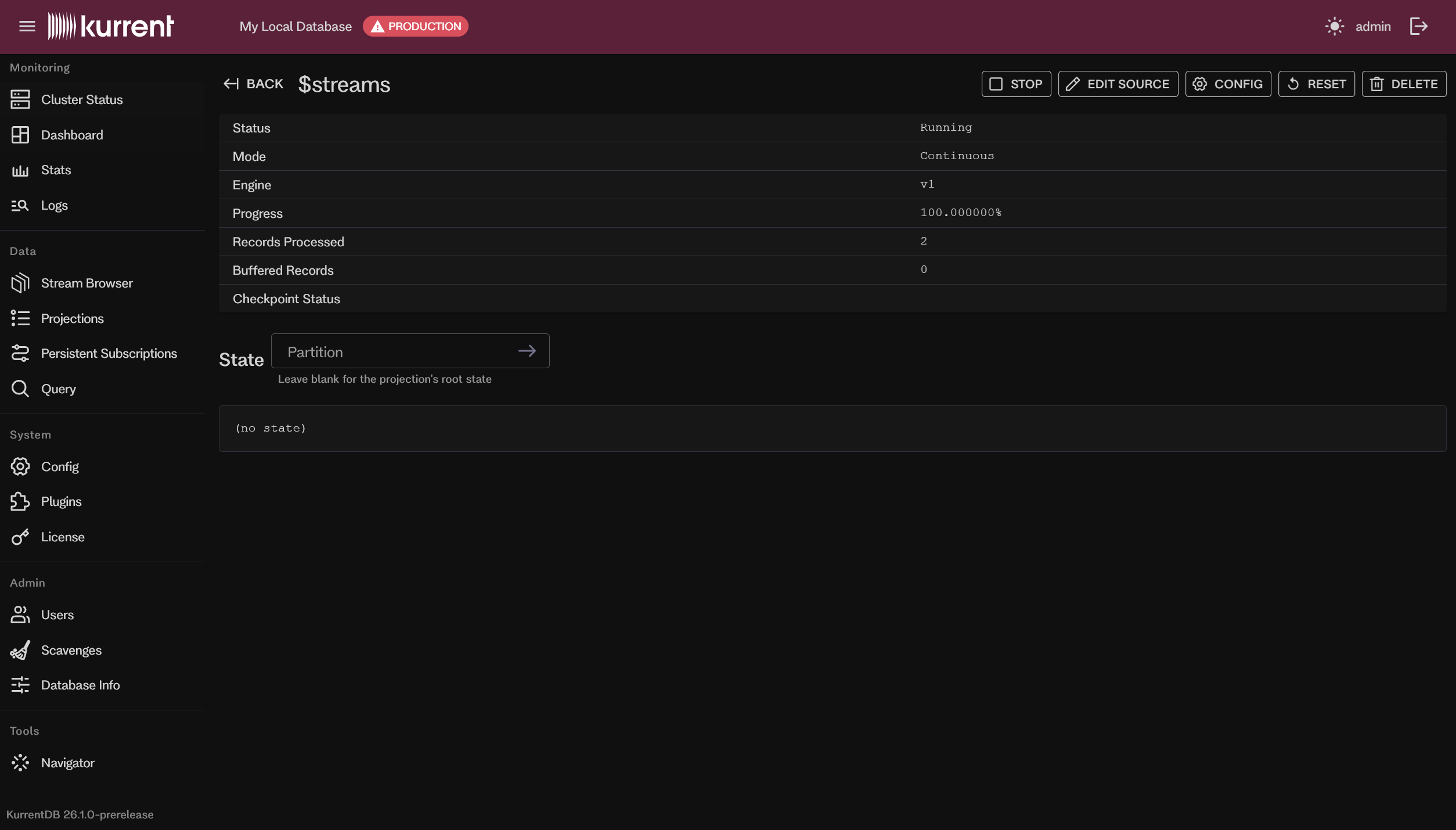
The detail view shows the projection's query, statistics, state, and result, and lets you Enable, Disable, Reset, Delete, edit the query, and set configuration options.
Persistent subscriptions
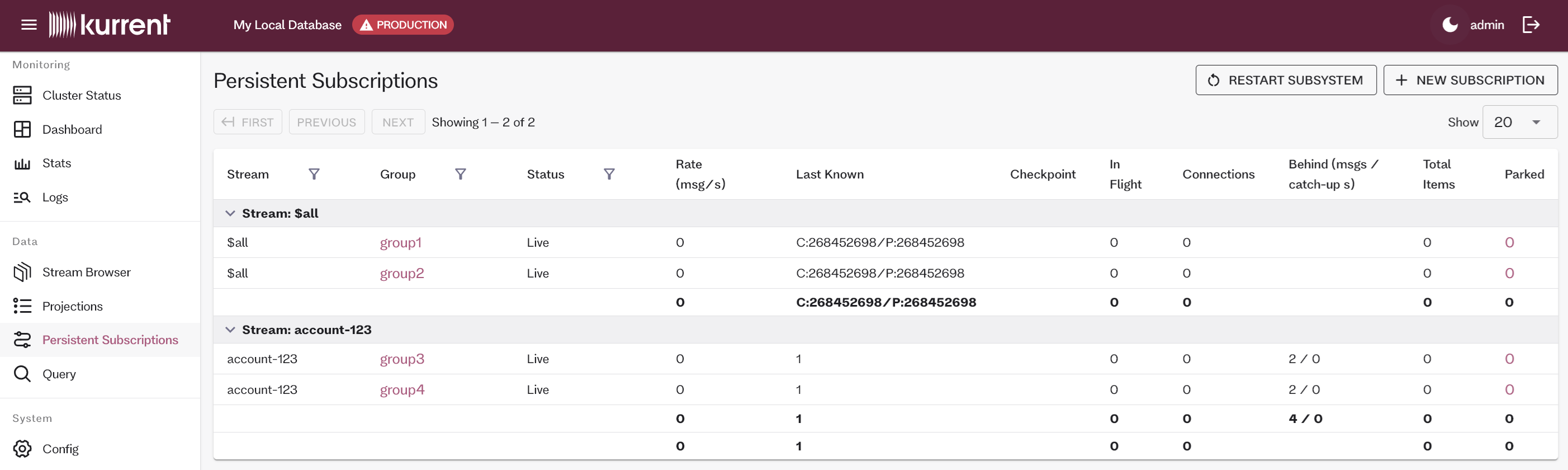
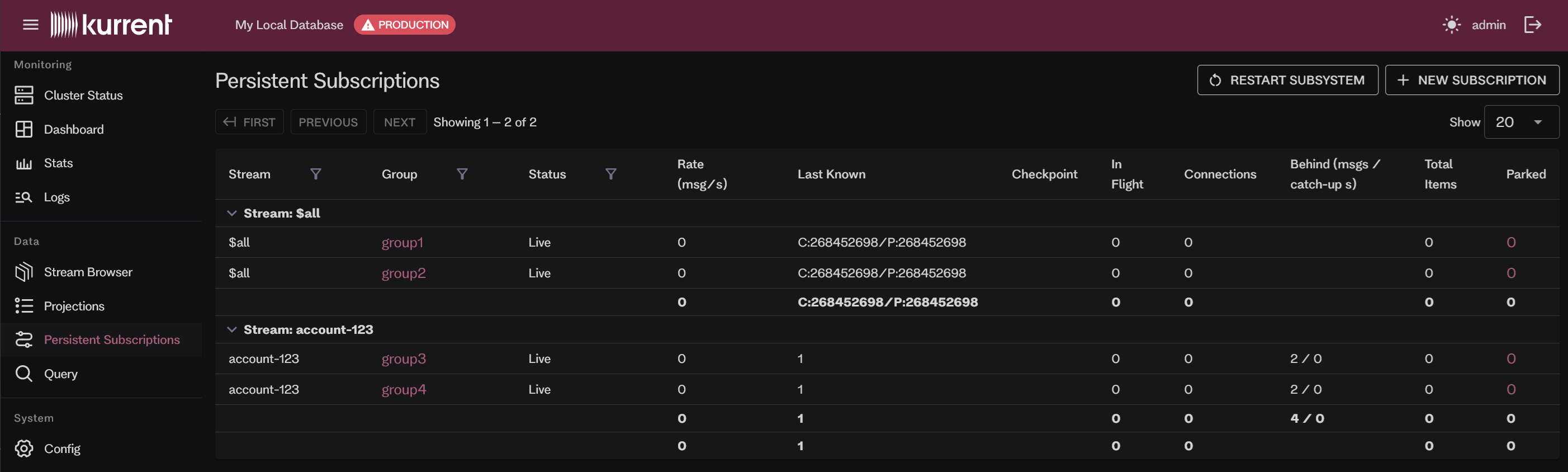
The Persistent Subscriptions page lists persistent subscriptions grouped by stream, with their status and statistics. From here you can create a New Subscription and, on the leader, Restart Subsystem. Persistent subscriptions run on the leader, so on a follower the page shows a notice with a link to the leader.
Selecting a subscription shows its configuration and connections, and lets you edit it, delete it, Replay Parked Messages, and browse the parked-message stream.
Query
The Query page provides a SQL editor for running ad-hoc queries against your event data. See the Queries UI documentation for details.
Configuration
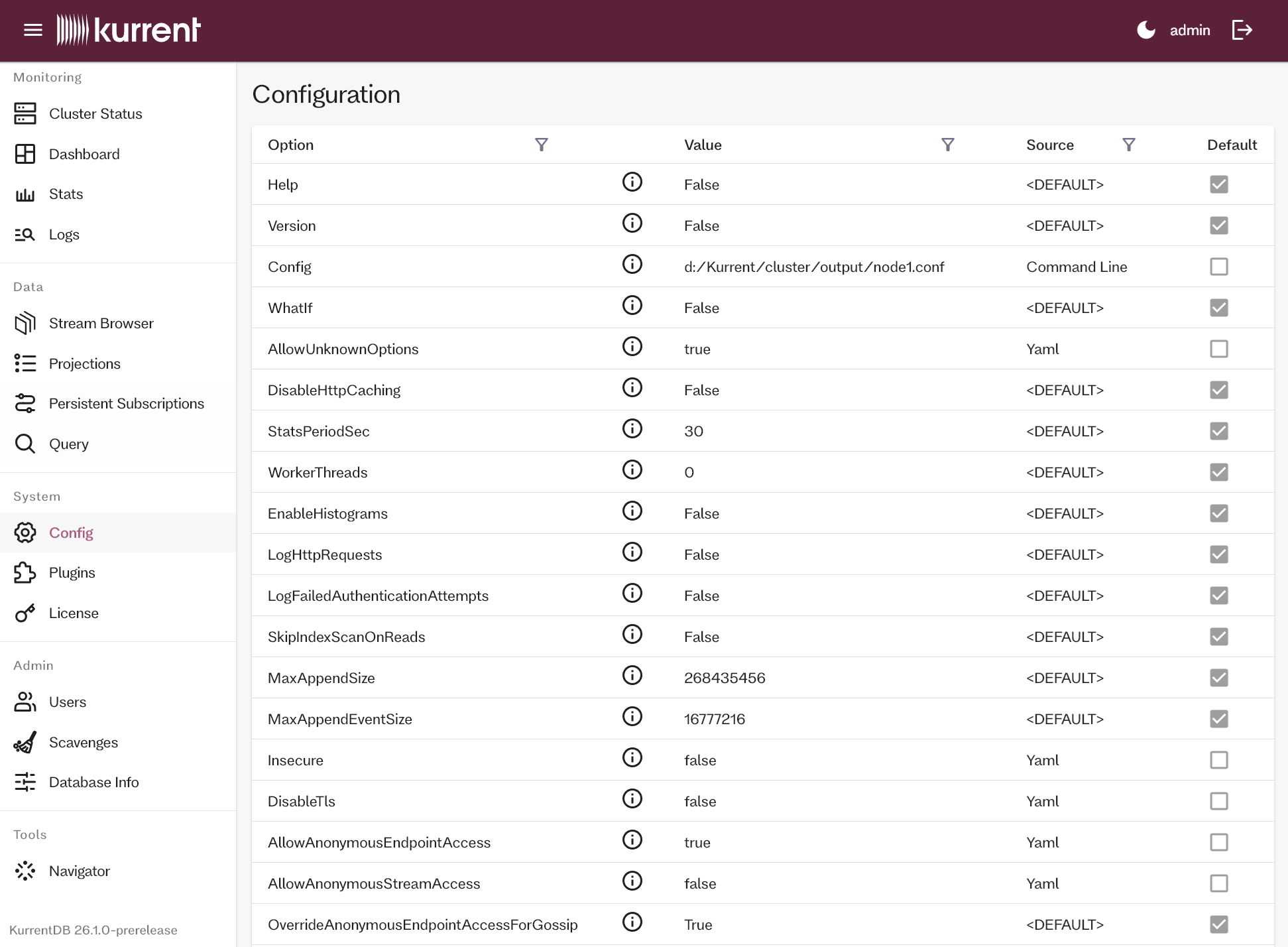
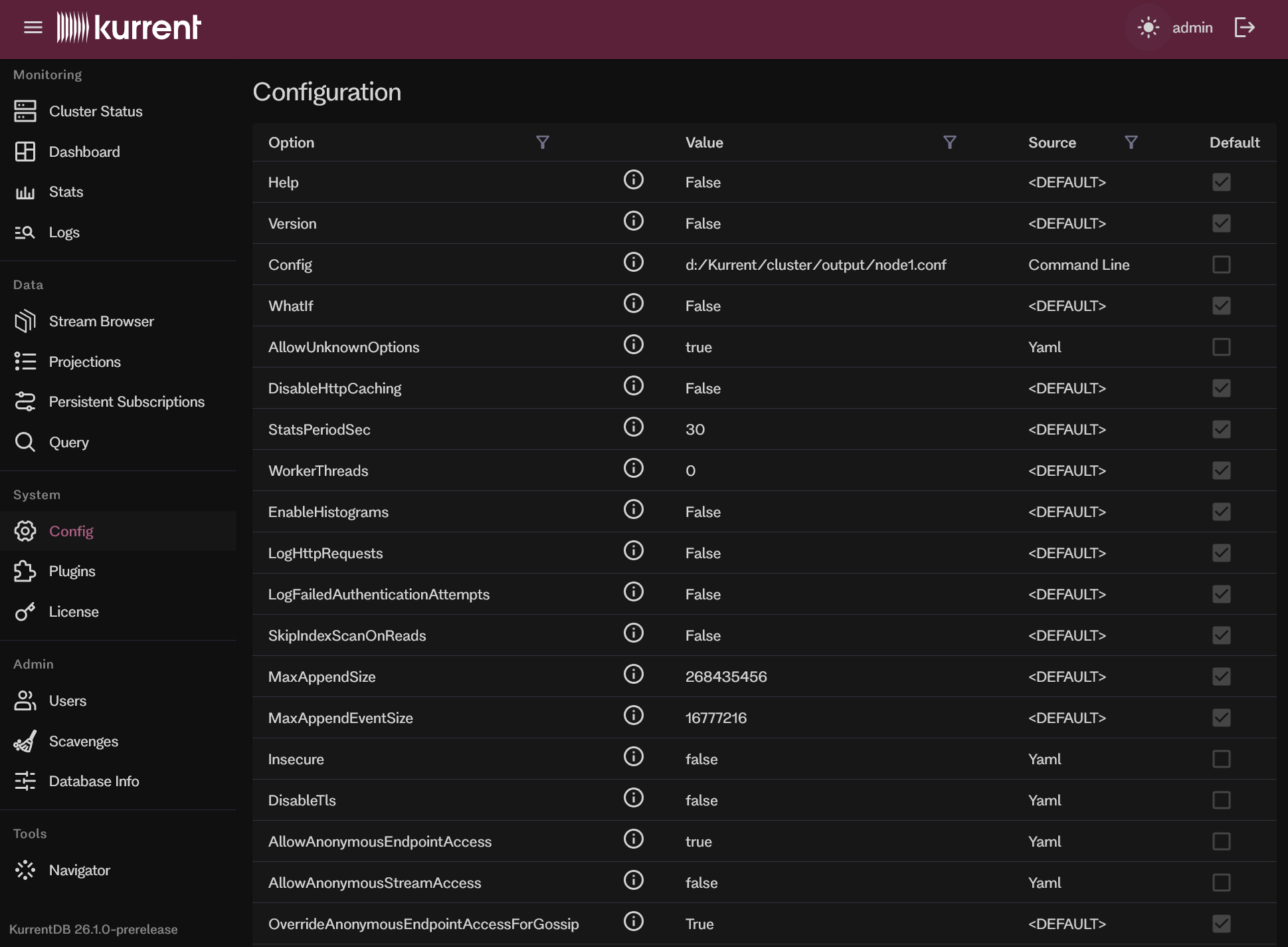
License RequiredThe Config page shows the current configuration of the cluster node in a table, which you can filter by name, value, and source. For each option it shows a description, the current value, and the source it was set from (e.g. default, environment variable, or configuration file). The configuration is read-only and cannot be modified from the UI.
Plugins
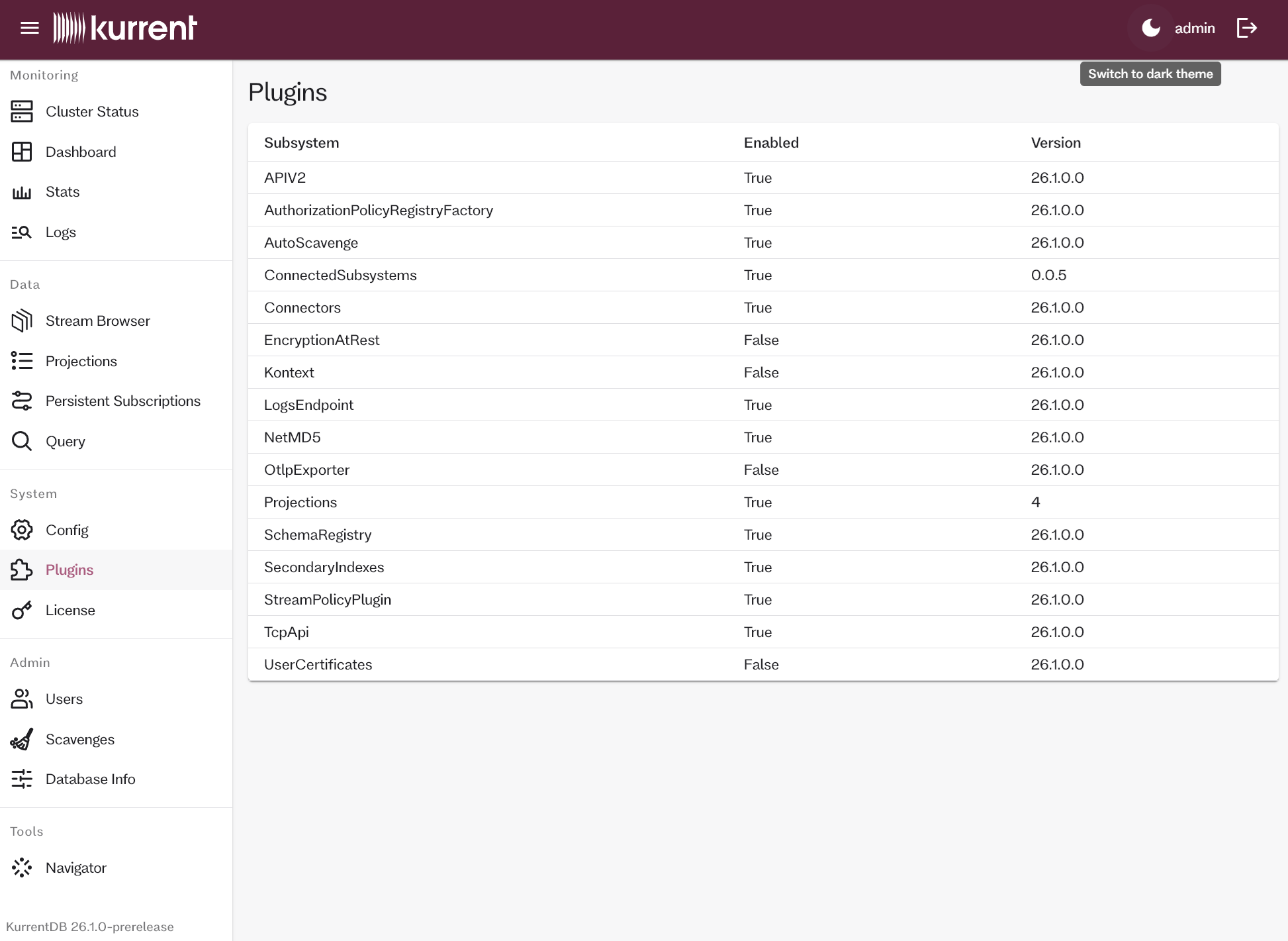
License RequiredThe Plugins page lists the plugins and subsystems loaded in the cluster node, showing each one's name, version, and description, so you can verify which plugins are active.
Users
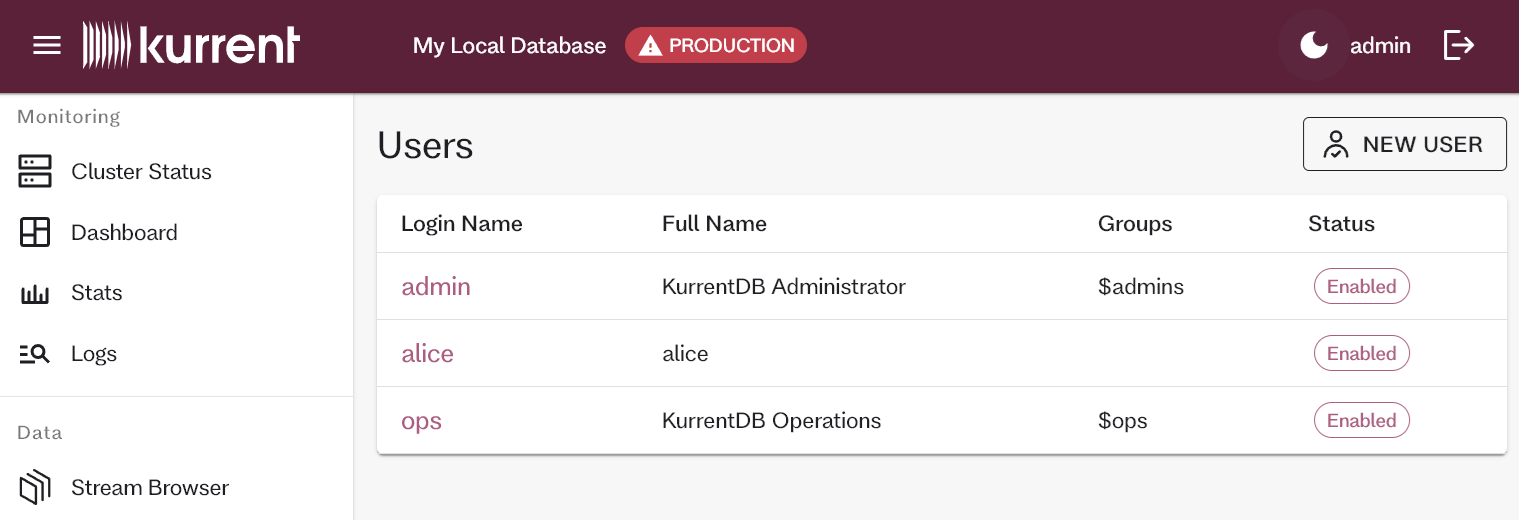
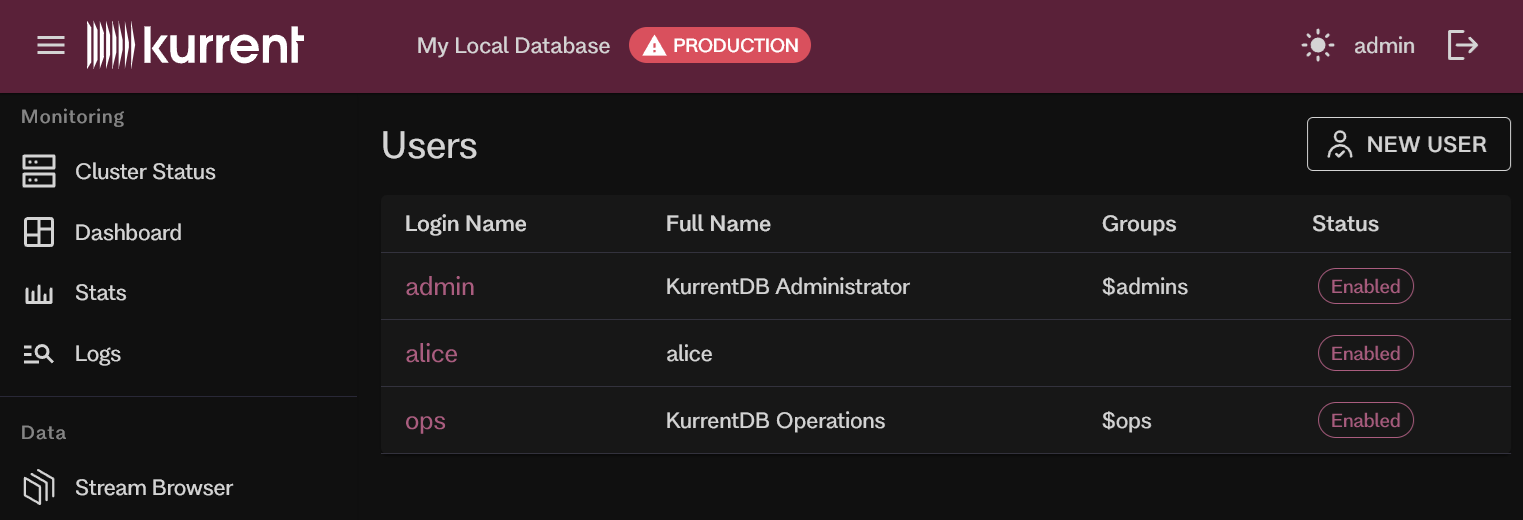
The Users page lists the users defined in KurrentDB and lets you create a user. Selecting a user opens its detail view, where you can update, enable/disable, reset the password, or delete the user. The page is unavailable in insecure mode or when an external authentication provider is configured.
Scavenges
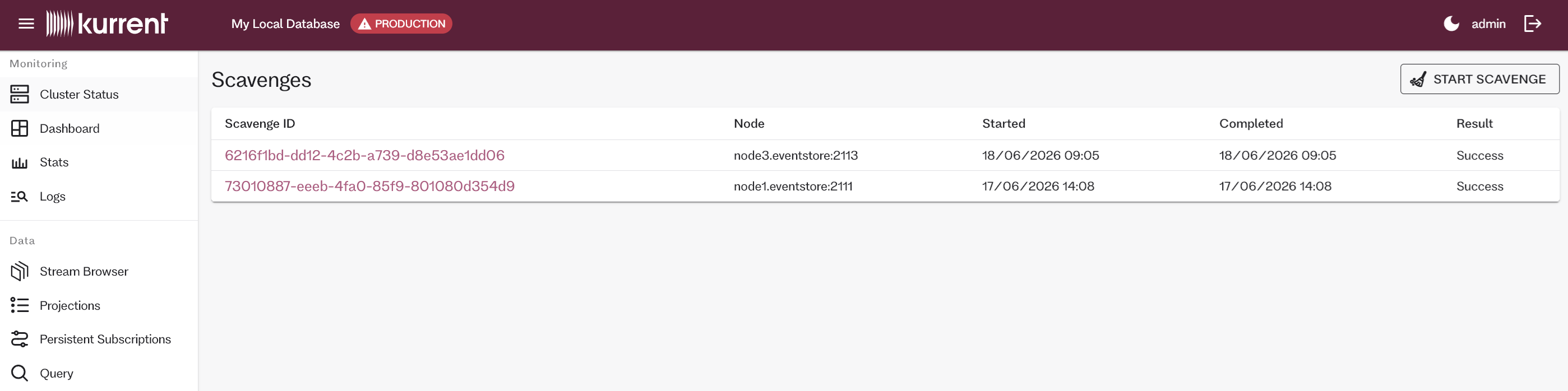
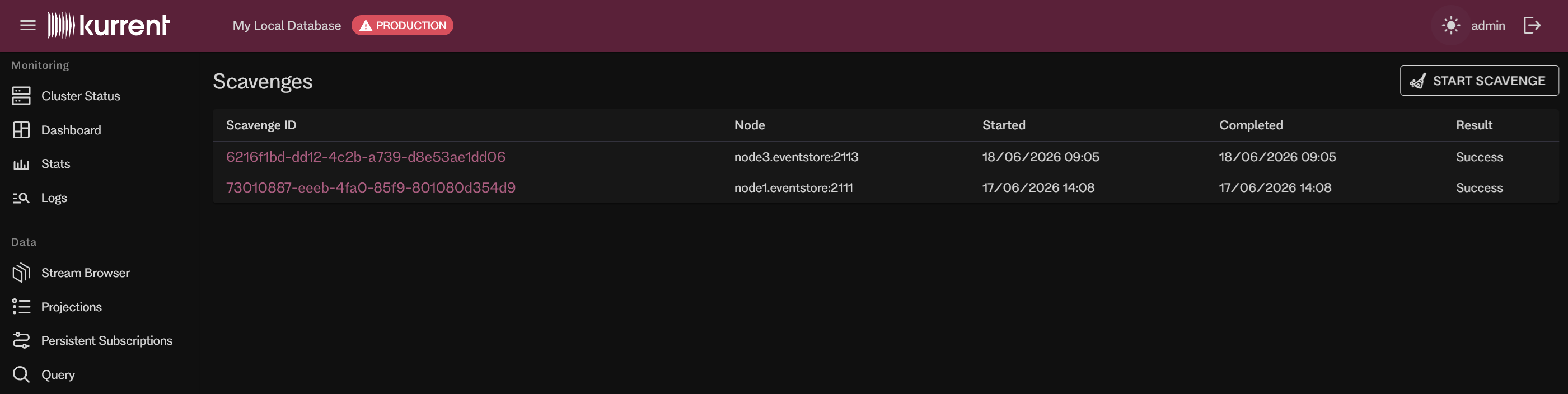
The Scavenges page lists scavenge operations and their history. You can start a new scavenge and stop a running one (subject to permissions). Selecting a scavenge shows its detail and progress.
Other pages
- License: Shows the license status of the cluster node.
- Database Info: Lets you set a friendly database name and a production flag, both shown in the top bar (the production flag adds a PRODUCTION warning).
- Navigator: Links to the Kurrent Navigator app, including its feature-comparison table.